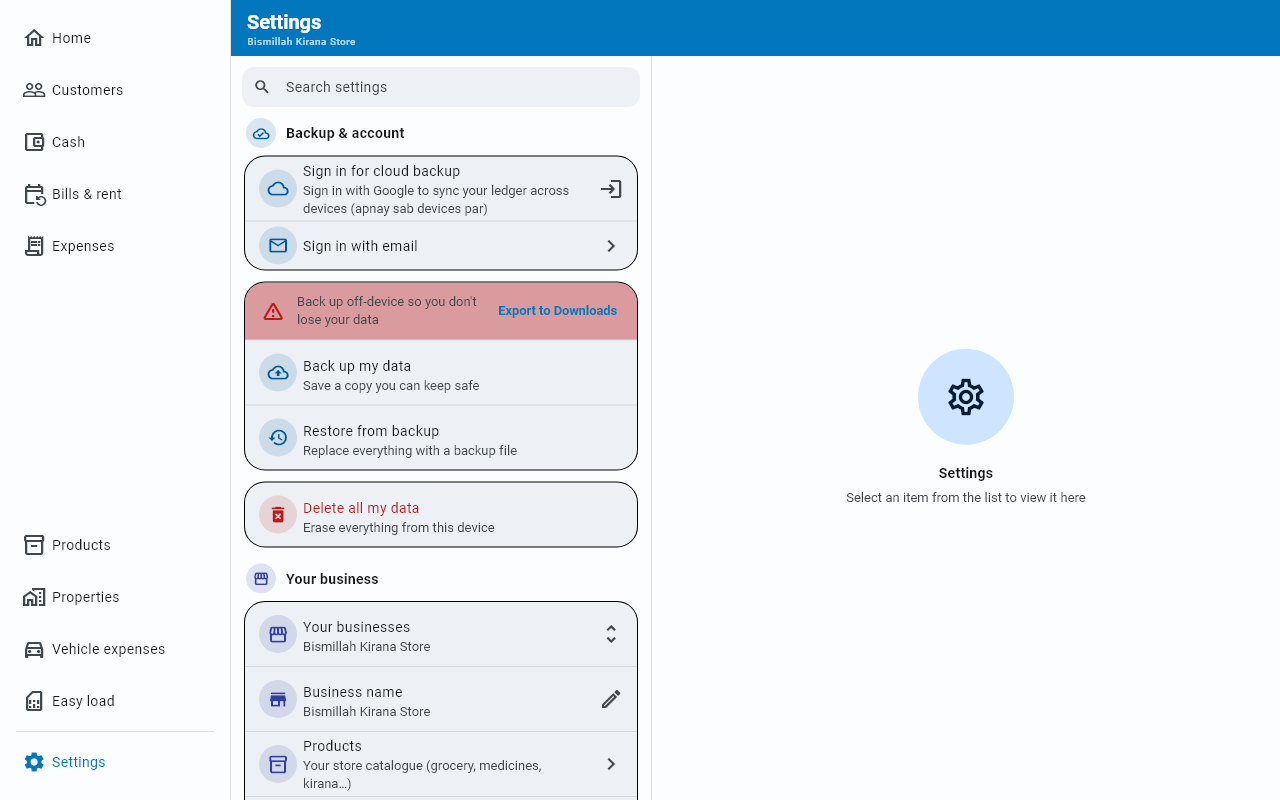
Backup & restore
Three safety nets, only one of which needs you to do anything — and what to check before you trust any of them.
Your book lives on your device first. Everything here is about making sure that is not the only place it lives.
The three layers
| Needs an account? | You do anything? | |
|---|---|---|
| Local backup on the device | No | No |
| Businessly cloud backup | Yes | No |
| A backup file you keep | No | Yes |
Local backup
Even with no account at all, Businessly keeps a fresh encrypted copy inside the app on the device itself — books you keep on this device only included. Treat it as a last-resort copy, not as your backup: it lives in the app's own storage, so uninstalling Businessly or wiping the phone deletes it (so does Delete all my data, which removes these copies too), and there is no button in the app that restores from it. It does not cover a lost phone or a reinstall.
Cloud backup
Your book goes to your account as soon as you are signed in, even on one phone. This is what lets you get everything back on a new handset if this one is lost, stolen or broken. See Sync across devices.
A reminder you will see
If your book exists only on this phone, Businessly shows a message asking you to save a copy. Tap Save a copy and choose where to send it. The message comes back now and then until you do, and Don't ask again stops it for good.
A file you keep
Back up my data — Save a copy you can keep safe. This is the one that needs you, and it is the only layer you hold in your own hands.
Which phones can open the file depends on whether you were signed in when you saved it:
- Saved while signed in — the file opens only after you sign in to the same account. A different account, or a phone with no account, gets Couldn't read that backup file. So it protects you from a lost or broken phone; it does not protect you from losing access to your account.
- Saved as a guest (never signed in) — the file opens on any phone.
If you keep books on this device only, Businessly asks Include your device-only books? once, as you save. Leave them out is the default, so nothing you chose to keep on this phone goes into a file unless you say Include them. A file that includes them is the only copy those books will have off the phone, so keep it somewhere private, and know that restoring it while signed in may add those books to your account (it always does on an older version of the app).
The file saves, then Businessly offers to share it — WhatsApp it to yourself, mail it, put it in Drive.
The file simply lands in your Downloads folder. No share prompt appears — do not wait for one. Move it somewhere safe yourself.
Restoring
Restore from backup — Replace everything with a backup file.
If a file is damaged, from a different app, or saved under a different account, you get Couldn't read that backup file and nothing changes. After a restore Businessly sets your reminders again from the restored book.
Backup health
Settings shows a warning row with Back up off-device so you don't lose your data to everyone who is not signed in with Google. That means a guest, and also someone who signs in with an email code, even though that book is normally already synced to their account. Export to Downloads on the row is a one-tap way to save a backup file.
The row does not check your copies and does not go away after you export: it is a standing reminder, not an alarm that something has failed.
Moving to a new device
- Sign in on the new device with the same account — or, on Android, let Businessly do it for you. See Signing in on a new phone.
- Your book syncs down.
- Or, with no account: restore a backup file you saved as a guest. A file saved while signed in opens only after you sign in to the same account.
Deleting everything
Delete all my data asks What would you like to remove? with two very different options:
- Remove from this phone only — takes the book off this handset. Businessly first checks whether a copy exists anywhere else
- Delete everything, everywhere — local and cloud. This cannot be undone, so it asks a second time: type your shop name (or DELETE) to switch on the red button, or tap Save a copy first to export a file before you decide.
If no copy is found elsewhere you are warned and can still choose Wipe anyway — but read that twice before agreeing, because at that point this phone is the only place your book exists. A signed-in user whose backup failed sees Couldn't back up; a user who never signed in is told This phone holds the only copy with the plain reason: no account, so no cloud copy. Either way, Save a copy first is the main button: it exports a file before anything is removed — and, unlike an ordinary backup, that file includes any books you keep on this device only. If you restore that file while signed in, those books may join your account (they always do on an older version of the app).