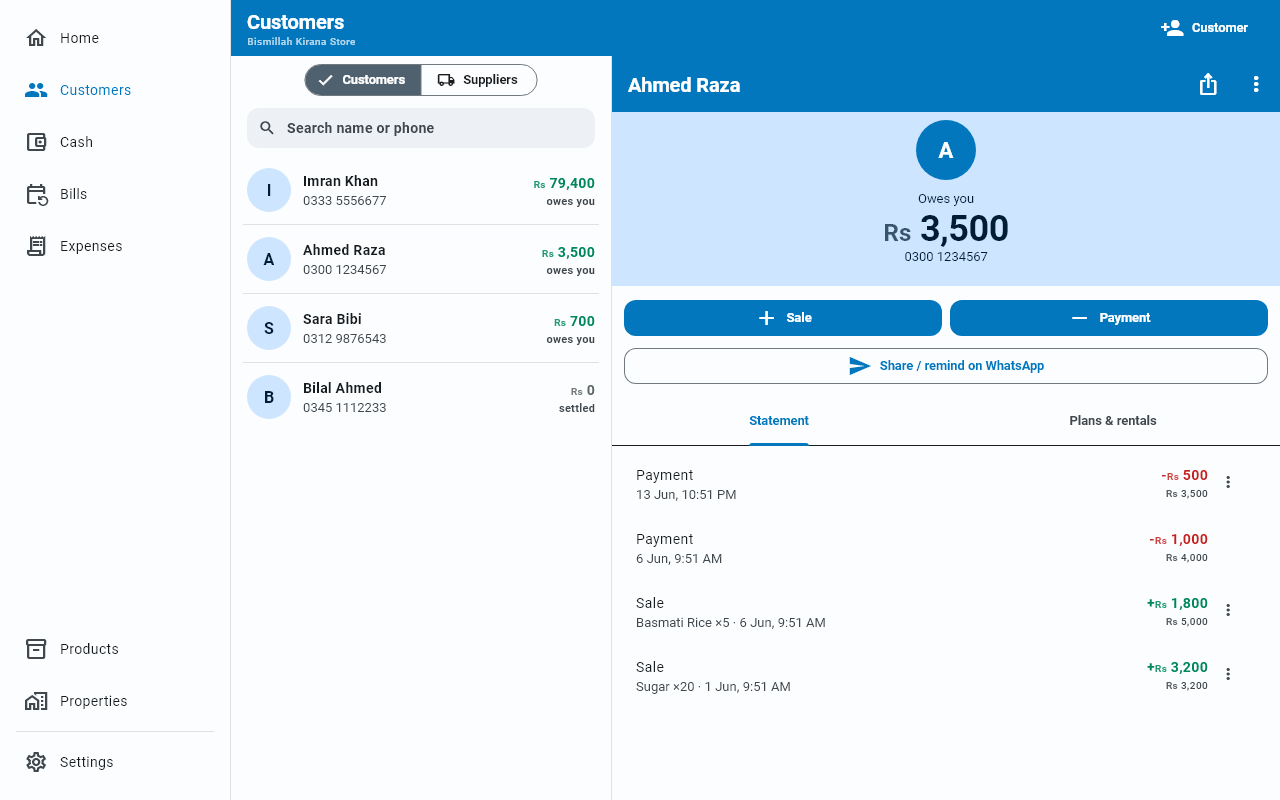
Installing on your PC
The Windows app is free on the Microsoft Store, and it is the same Businessly with the same book.
Search for Businessly in the Microsoft Store, or open the Store listing.
It is free, it works offline, and the Store keeps it updated in the background.
Why bother, if you have the phone app
- A wider screen. Lists and detail sit side by side instead of one at a time.
- A keyboard. Entering a week of backlog is quicker typing than tapping.
- No ads. There are none at all in the Windows version.
Getting your book onto it
A fresh install starts empty, exactly like a new phone. To bring your existing book across, sign in with the same account you use on your phone.
- Install from the Microsoft Store.
- Sign in — email is easiest on a PC, since the code arrives in your inbox.
- Your book syncs down.
See Signing in on a PC.
Where your data is kept
In your Windows user profile, in an encrypted database — the same encryption as on Android, with the key held by Windows itself.
Updates
The Microsoft Store updates the app in the background. You can also check from Settings → Check for updates, which opens the Store page.
Unlike Android, there is no in-app install — see Keeping the app updated.
What to know before you rely on it
The PC app does everything the phone does except a few things that are genuinely phone features — reminders, contacts import, and ads. That list is worth two minutes of your time: Phone & PC differences.