Customers & suppliers
Everyone you trade with, in one list, with what they owe you — or what you owe them — beside each name.
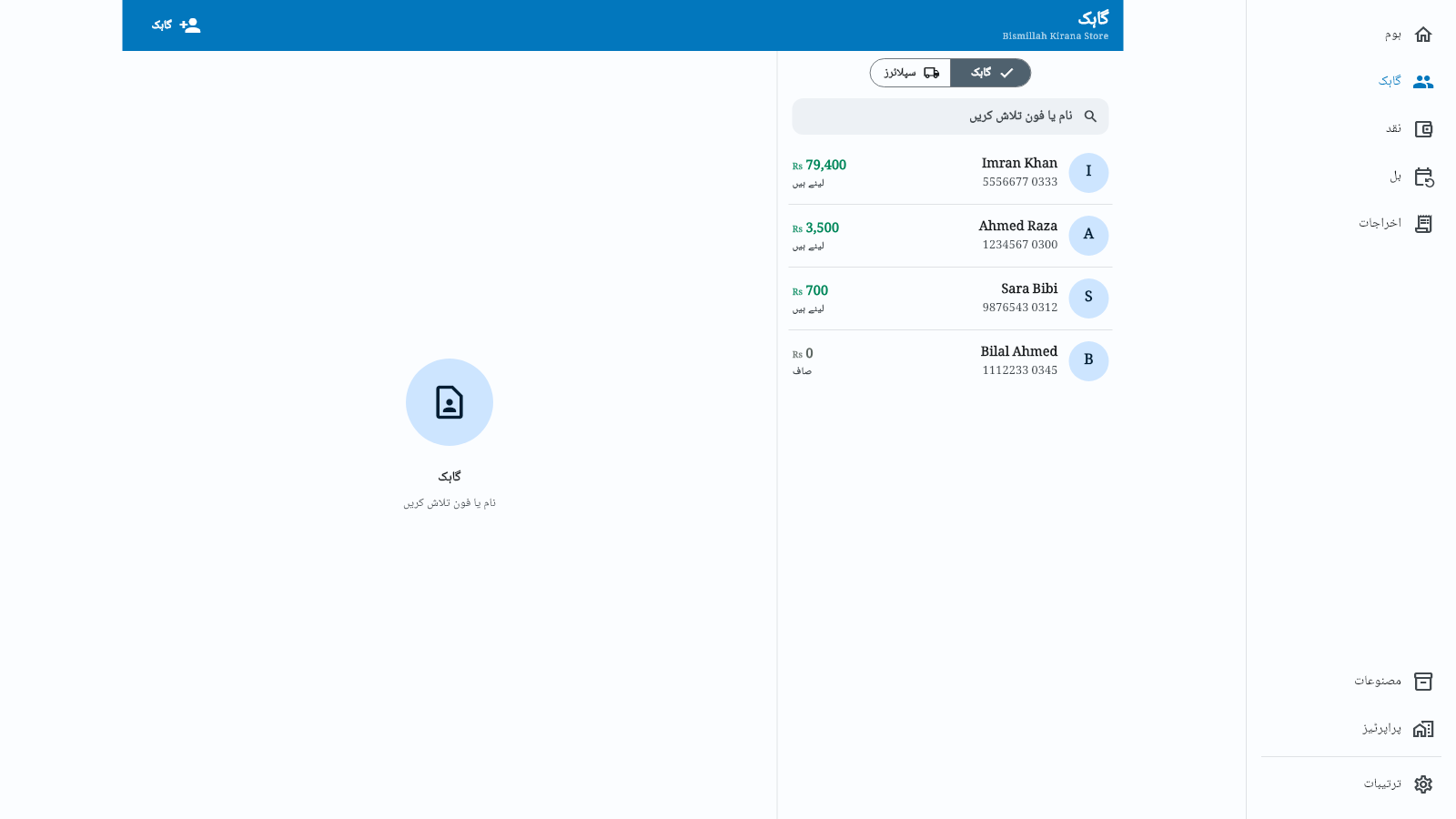
The Customers tab holds two lists behind one switch at the top: Customers and Suppliers.
Each row is a name and a balance — green when they owe you, red when you owe them. Switching between the two clears whatever you had typed in the search box.
Picking a name opens them in the right-hand pane, so you never lose your place in the list. On a phone it opens as a full screen instead.
Finding someone
The search box takes a name or a phone number — Search name or phone. Useful when someone rings you and you only have their number on screen.
Adding someone
Two ways: the Customer / Supplier button (while the list is still empty, the one button on the screen reads Add instead), or Import from contacts to pull someone in from your phone. Your phone's contact picker lists each of a contact's numbers with its Home / Work / Mobile label, so you tap the one you want. The name and that number fill in; add an email yourself if you need one.
Import from contacts does not work on a PC — Windows has no access to your phone's contacts. Type the name and number in, or add the person on your phone and let it sync across.
You may still see a "From contacts" button on one or two screens on Windows. Clicking it does nothing; this is a known rough edge.
Two people with the same name
If you add a name that already exists, Businessly stops and asks first — Name already exists, with Add anyway if you really do have two customers called Ahmed.
What a customer's page gives you
Open anyone and you get their full history. Under the balance, two big buttons sit side by side — Sale (diya) and Payment in (liya) (or Purchase (liya) and Pay supplier (diya) on a supplier's page). Under those is one row of small chips: Share or remind for the WhatsApp reminder (a plain Share balance when they owe you nothing, and on a supplier), and Loan (qarz) for cash loans — press and hold it (or point at it on a computer) to see Lend to {name} / Borrow from {name}. The first lines of the statement are on screen straight away, even on a small phone.
The detail is in The statement.
Removing someone
The ⋮ menu on their page has Delete. Their entries are part of your books, so Businessly will tell you what that means before it does anything.