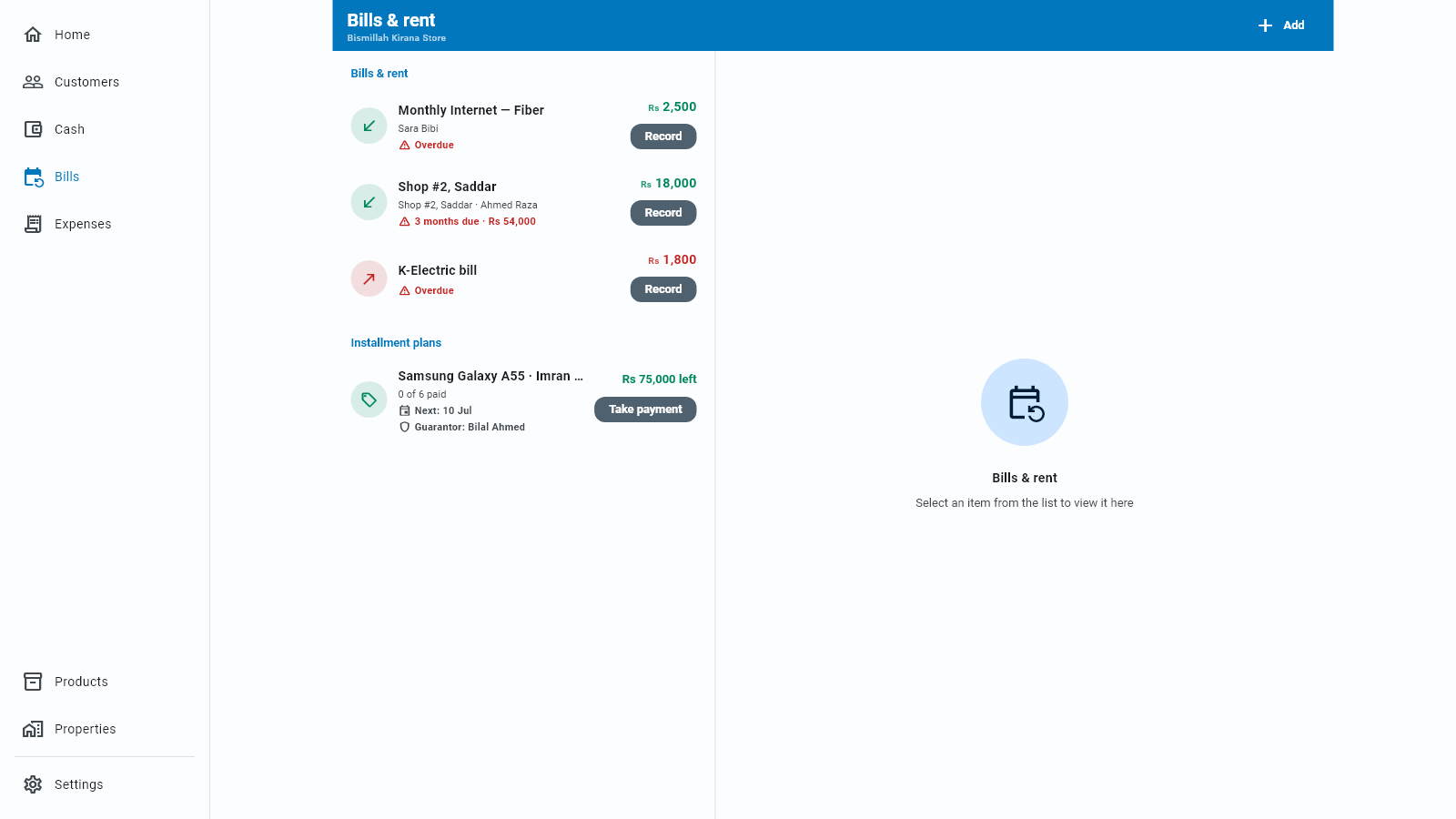
Bills & rent
Rent, electricity, salaries — the payments that come round every month. Businessly never takes the money on its own; it waits until you say you paid.
A bill in Businessly is a template, not a payment. You describe the thing that repeats — its name, how much, and which day of the month it lands — and every month the app shows it as due. The actual cash entry is created only when you tap Mark paid.
That is the whole idea, and it is what keeps your books honest: your cash in hand never drops for a bill you have not really paid yet.
Where to find it
Tap the round Sections button in the middle of the bottom bar. One tap always opens the card of sections just above the bar, wherever you are; choose Bills & rent.
You can also reach it from the Bills & rent due card on the Home screen.
Bills & rent is a permanent entry in the left sidebar — one click, no menus.
Adding a bill
- Tap Add and choose New bill / rent.
- Give it a Name — the field suggests Rent, Electricity, Salary…
- Enter the amount and the day of the month it is due.
- Say whether it is money you pay or money you receive.
If you have nothing set up yet, the empty screen says No recurring items yet and offers Add recurring directly.
Reading a row
Every row says how it is doing in one coloured pill, in the same colours everywhere in the app:
| Pill | What it means | What you do |
|---|---|---|
| Plain grey date, like Due 28 Oct | The due day is more than a week away | Nothing yet |
| Amber: Due today | The due day is today | Pay it, then record it |
| Amber: Due in 4 days (or Due tomorrow) | Not due yet, but within the next week — a heads-up | Get ready to pay |
| Red: Overdue, or 6 months due · Rs 15,000 | The due day has passed and nothing is recorded, or several months are behind | Pay it, then record it |
| Grey, like Paid · Oct | You recorded this month's payment | Nothing — it returns next month |
Home's amber Bills due tile counts only bills whose due day has already arrived — Due today and Overdue — so an amber Due in N days heads-up is not counted there yet.
There is no green on these rows, so a red warning is never sitting beside a green arrow. The round icon on the left takes the colour of the pill; its arrow tells you the direction — pointing down and left is money coming in (rent you receive), up and right is money going out (a bill you pay). The amount is plain black.
A long name now takes two lines instead of being cut off, and the screen title is no longer repeated as a heading above the list. Installment plans below it use the same pills: red Overdue and a red Guarantor pill once the guarantor's alert date has passed, a plain pill for the next installment date.
The monthly cycle
Each month a bill goes from "coming up", to due (amber), to Overdue (red) if you let it slide, to paid (grey).
When the money actually moves, tap Mark paid. Businessly offers This month or Another date… if you paid late or early, then creates the real entry: a bill you pay becomes an expense, a rent you receive becomes cash in.
Several months at once
Behind on rent, or a tenant hands you four months together? Open the item and use the lump-sum option rather than recording the same month over and over.
- For money coming in you set Months to receive; for money going out, Months to pay.
- Businessly marks off each month separately, so the history still shows month by month — you just entered them in one go.
- It handles arrears and advance the same way: pay ahead and the coming months are already marked.
Installment plans live here too
The same screen carries a second section, Installment plans, for goods sold and paid off monthly. They behave differently enough to have their own page — see Installment plans.
Sending a reminder
Open a bill and you can send the person a WhatsApp message with the amount and month already written. You edit the wording once under Message templates and it is used everywhere.
WhatsApp opens directly in the app, with the message ready. You press send.
WhatsApp opens in your web browser. You need to have signed in to WhatsApp Web once on that PC; after that it works the same way.
The phone notification that nudges you when a bill is due does not work on a PC. You can switch reminders on and set a time, and the app will even say a test reminder was sent, but nothing will ever appear. Reminders arrive on your phone only.
Ending a bill
When something stops — you leave the shop, a tenant moves out — remove the recurring item: tap the ⋮ beside its amount and choose Remove. Businessly asks first (Remove this recurring item?). That stops the monthly reminder. Payments you already recorded stay in your books; removing the template never rewrites history.
The same ⋮ also holds Mute reminders this month — handy when you know a bill will be late and do not want the nudge.