Expenses
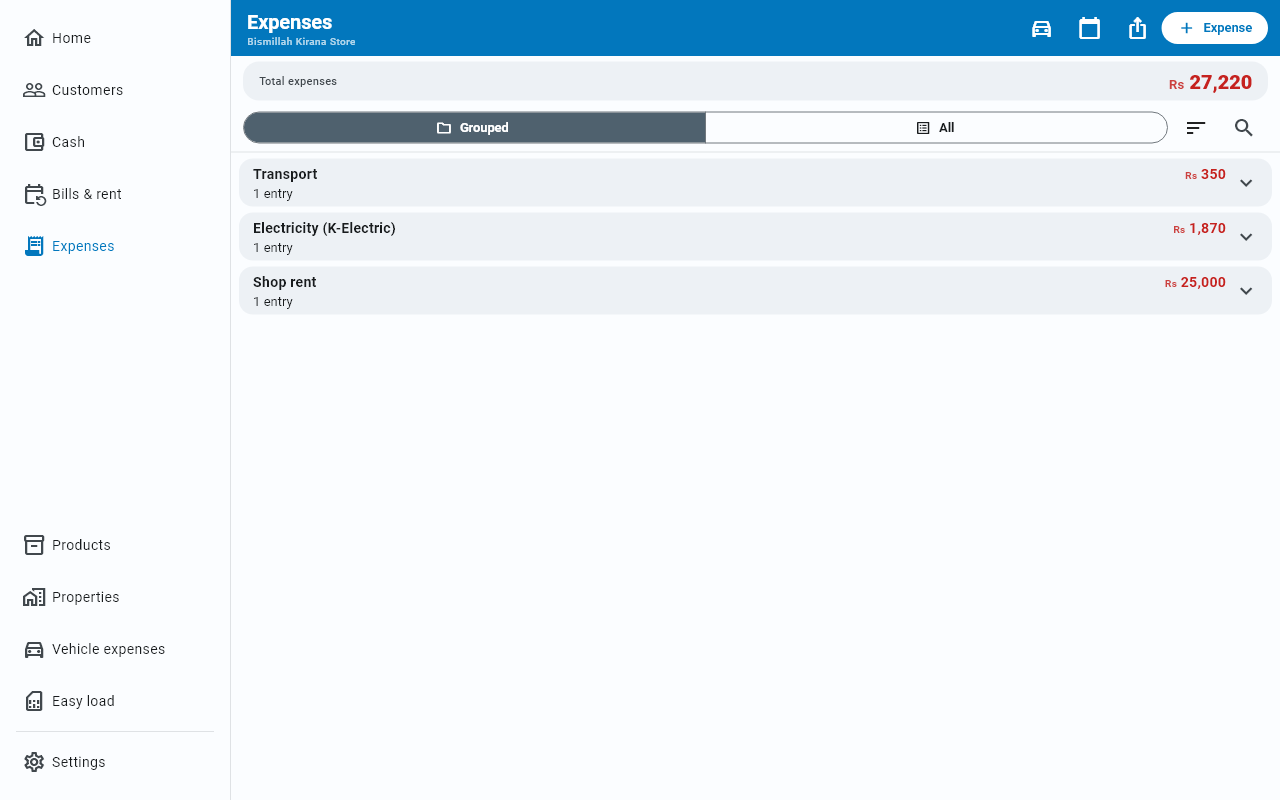
What the shop spends — with quantity and rate when you buy by weight or by the piece, and grouped by category so you can see where the money went.
An expense is a running cost of the shop — rent, electricity, transport, wages, tea. Not stock you bought to resell; that is a Purchase.
Recording one
New entry → Add expense, or the button on the Expenses screen itself.
| Field | For |
|---|---|
| Amount | The total — the first box, with the keyboard already open on it |
| Category (rent, bills…) | What kind of cost it is. Suggestions appear as you type. |
| Quantity and Unit | How many, and of what — 5 kg, 2 bags, 30 litres |
| Rate/unit | The price of one |
| Note (optional) | Anything you want to remember |
| Date | Today, unless you tap it and pick another day |
| Paid in cash now | On by default — see below |
The amount comes first, because most expenses are just a total. Type it, then the category, and Save switches on — Save needs both. Quantity, unit and rate sit below as the optional detail.
The sum works both ways
You do not have to work anything out yourself. Fill in the rate and either of the other two, and Businessly fills the one you left:
| You know | You type | Businessly fills |
|---|---|---|
| What you bought | Quantity 30, Rate/unit 280 | Amount Rs 8,400 |
| What you paid | Amount 8,400, Rate/unit 280 | Quantity 30 |
A line under the fields shows the sum it is doing, so you can see it is right before you save.
Two things it will never do. It never invents a rate — a rate worked out backwards lands on numbers like Rs 166.67, and that is not something to put in your book by accident. And it never overwrites a figure you typed: if you round a total down to Rs 8,400 by hand, your 30 litres stays 30 litres.
You can also just type the Amount and skip quantity entirely. Most small expenses do not need it.
Recording it for an earlier day
The Date field says Today. Tap it to pick the day the money actually went out — useful when you are catching up on a few days at once. Your daily cash totals are built from these dates, so the real date keeps them honest.
Paid now or paid later
Paid in cash now is on by default, and it reduces your cash in hand — because that is what actually happened.
Switch it off for a cost you have incurred but not settled yet. It counts as an expense for the month without touching your till.
Grouped or listed
Two views, switched at the top:
- Grouped — the default. One row per category with its total, so you can see at a glance that transport cost more than rent this month. Tap a category to open it and see the individual entries inside; tap again to fold it away.
- All — every expense in order, newest first.
Total expenses sits above them and always reflects whatever is filtered.
The order of the list
Entries come newest first by their entry date — the date on the row — both in the All list and inside an opened category. An edited entry keeps its original date, so it stays where it belongs instead of jumping to the top.
In Grouped view the categories follow the same order. The category holding your newest entry sits at the top, not the one with the biggest total — so whatever you just wrote down is where you look first. Two categories from the same day put the bigger total above.
The sort button beside the Grouped / All switch offers two more orders:
- Name (A–Z) — alphabetical, for the categories and the entries alike.
- Recently edited — whatever you touched last comes first. Handy right after correcting an old entry. In Grouped view the category you last corrected leads.
Looking at one entry
A row only has space for a summary. Tap any entry to see the whole of it: the category, the full date, the quantity and rate if you entered them, whether it was paid in cash or on credit, and the note in full.
Finding one
The search icon beside the Grouped / All switch opens a Search expenses box. It stays out of the way until you need it, so the list is not competing with a field you use once a week.
The calendar button at the top of the screen narrows things to a month or a custom range — see Reports & export. While a period is active, a chip above the list names it; its ✕ goes back to all time.
Exporting
The share button at the top right exports the filtered list as a PDF or an Excel file — see Reports & export. This is usually what an accountant wants.
Vehicle costs
Fuel, oil and maintenance are recorded per vehicle on their own screen, but they land in this list too. See Vehicles.