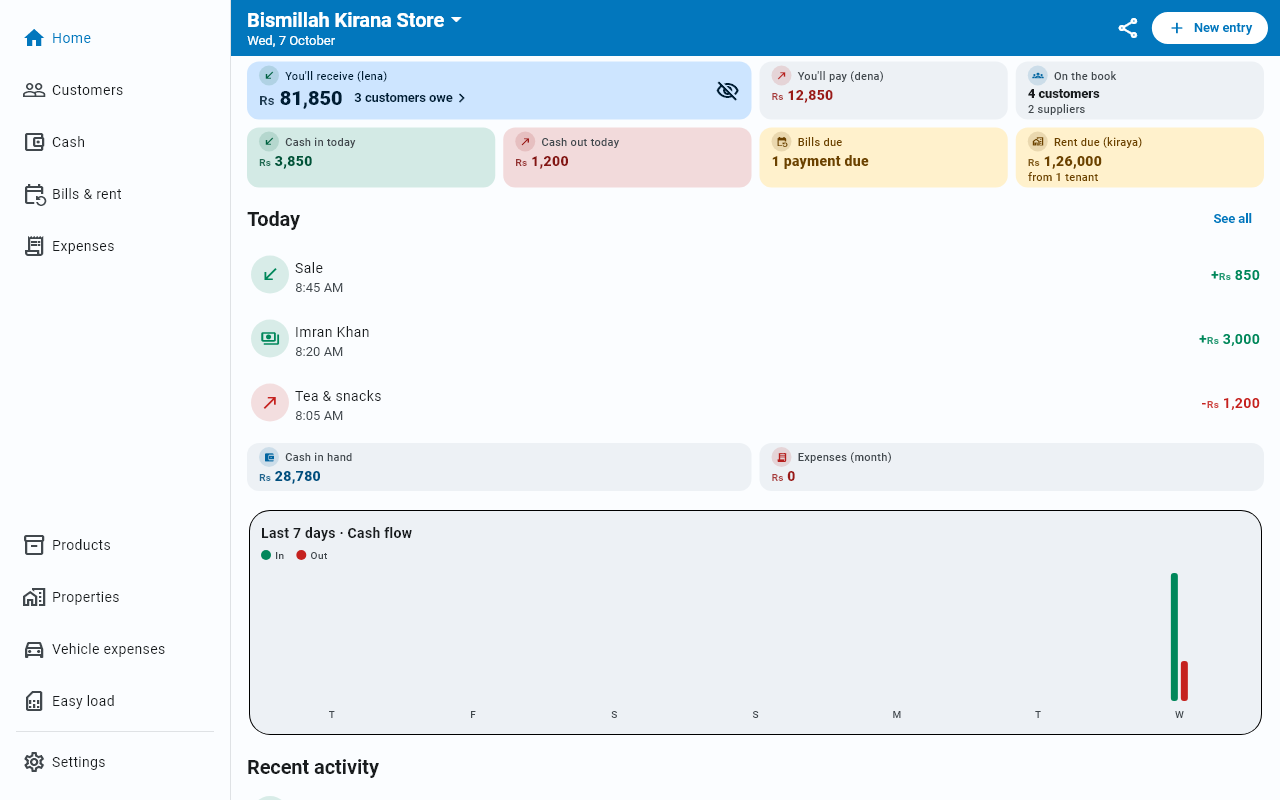
The Home screen
Your daily dashboard — what you are owed, what you owe, what is in the till, and what happened today.
Home answers the question you actually open the app for: where do I stand right now?
Getting around
Five slots along the bottom. Left to right they are Home, Customers, a raised round button in the middle labelled Sections, Cash, and Settings.
The middle button is not a tab — it is a launcher for the rest of the app, and it always does the same thing: one tap opens a card of big tiles that sits just above the bottom bar, with a curved cut-out around the button. The bar stays in view underneath. Choose Expenses, Products, Bills & rent, Properties, Vehicle expenses or Easy load. Each tile has its own colour and a one-line hint, and the section you are in carries a tick. The button's picture and label never change, whichever section is showing. On a small phone or with large text the card scrolls.
To close it without choosing, tap the round button again, tap the dimmed area, or press your phone's Back button.
The section you used last is outlined on the card even when you are on another tab, so getting back to it is two predictable taps: open the card, tap the outlined tile.
The tiles are ordered by how often they are used, so the daily things sit at the top. Below a dividing line is Zakat (zakat hisaab), which opens on its own rather than swapping the screen behind it.
Tapping the tab you are already on scrolls that page back to the top.
A permanent sidebar down the left, with everything at one click: Home, Customers, Cash, Bills & rent, Expenses, then Products, Properties, Vehicle expenses, Easy load, and Settings at the bottom.
Nothing is hidden behind a menu — the six sections that share one button on a phone each get their own row here.
The tiles and cards, top to bottom
At the top is a small grid of tiles. Each tile is one fact, with a coloured icon and its name beside it (the colour is never the only signal), so you can read your day in a glance and still see today's entries without scrolling. On a phone the tiles sit in two columns; in a wide Windows window they spread into four. Several only appear when they apply, so you will not see all of these at once.
| Tile | What it tells you |
|---|---|
| You'll receive (lena) | The wide tile at the top: everything your customers owe you right now — one figure, shown once — with how many customers owe you beside it (3 customers owe ›). The eye on this tile hides every amount. Tap the tile to open To collect |
| You'll pay (dena) | Everything you owe your suppliers. Tap it to open Customers on its Suppliers tab, where each supplier and what you owe them is listed |
| On the book | How many customers and suppliers you have. Tap it to open Customers |
| Cash in today | What came into the till today. Tap it to open the Cash book |
| Cash out today | What went out of the till today. Tap it to open the Cash book |
| Bills due | Amber, and only when something is waiting: how many monthly payments are due. Tap it to open Bills & rent |
| Rent due (kiraya) | Amber, and only when tenants owe you rent: how much, and from how many tenants. Tap it to open Bills & rent |
Further down:
| What | What it tells you |
|---|---|
| Today | Today's cash-book entries, newest first — the same rows the Cash in today and Cash out today tiles above add up. Up to five, each with its time; a payment names the person (a walk-in cash sale reads Sale). See all opens the Cash book. Hidden on a day the till has not moved. A sale on credit (udhaar) does not touch the till, so it is listed under Recent activity instead |
| Cash in hand and Expenses (month) | Two more tiles of the same style, under the Today list: what is in the till right now, and this month's running costs |
| Last 7 days · Cash flow | A week of money in against money out |
| Recent activity | Your earlier entries, newest first — anything already shown under Today is not repeated here |
The customers owe › line inside the wide tile says out loud where the tile leads, and how many customers owe you — so you can find that list without having to know the tile is tappable. It only appears when somebody actually owes you something.
Bills and rent used to be two separate cards, the first in red. A bill or a rent coming due is a normal part of the month, so each is now a quiet amber tile that is simply absent when there is nothing to say; when neither is due, that row disappears. A rented property is counted once, on the rent tile.
The Cash in hand tile opens the Cash book, and the expenses tile opens Expenses.
If you have not recorded anything yet, Home shows a card in place of Recent activity: Your book is empty, a line saying where to start, and a coloured button. The button reads Add your first customer while you have no customers, or Record a sale once you have one. Tap it and the same form opens as from New entry. While you have no customers yet, a quieter Record a sale button sits beneath it, because a cash sale to a walk-in customer needs no name. The card goes away as soon as the book has its first entry.
Hiding the amounts
Every money total on Home starts hidden — Rs •••• — each time you open the app. Tap the eye on the wide You'll receive (lena) tile at the top to show them, and tap it again to hide them.
The one eye hides exactly these, and nothing else:
- You'll receive (lena) and You'll pay (dena)
- Cash in today and Cash out today
- the amount on the Rent due (kiraya) tile
- the Cash in hand and Expenses (month) tiles
- the amounts beside each other shop in Your businesses
It does not hide counts such as 3 customers owe, 4 customers or 2 payments due (they are not money), and it does not hide the single entries listed under Today and Recent activity — those are records, not totals. The cash book, statements and reports show their figures as normal. A screen reader says "amount hidden" for a hidden tile instead of reading the figure.
Cards that appear when relevant
- Your businesses — only once you run more than one shop, with Manage businesses beside it.
- Synced · 1 device — a small pill once two or more devices share your account. Tap it for Your devices.
- Backup nudge — if you have not signed in, an occasional card offering Sign in to cloud or Later.
- Backup warning — if a cloud backup has not succeeded in a while.
- Update available — when a newer version is out.
- Feature tip — a rotating hint, shown as a card on Home (not a pop-up). Turn these off under Themes, language & text size.
- Get more from Businessly — an invitation to look at the plans; close it and it stays closed.
One pop-up at a time
Businessly shows at most one pop-up message each time you open it — the "your book is only on this phone" reminder, Google Play's own update message, the email sign-in tip, the App Lock reminder, or a feature tip (feature tips are cards by default, so this only applies if you chose the pop-up form). If more than one is due, the most important one shows — in that order — and the others wait for the next time you open the app; nothing is lost or skipped for good. The Update available card is a card, not a pop-up, so it is always there.
The top bar
Your shop name sits at the top with a small arrow — tap it to switch between businesses. Beside it is the date, and a share icon for Share app.
Recording something
The coloured New entry button floats at the bottom right; scroll Home down and it shrinks to a small round +, then grows back when you scroll up. It opens nine choices, with the two you use all day — Sale (diya) and Payment in (liya) — as big tiles on top. See Record a sale.
There is no floating button. The same New entry action sits as a button in the bar at the top of the window.