Products & stock
What you sell, what it costs you, what you charge, and how many are left — with low-stock warnings before you run out.
A catalogue is optional. Plenty of shopkeepers use Businessly purely as a khata and never touch it. But if you keep one, sales can pick items by name and your stock keeps itself up to date.
What a product holds
| Field | |
|---|---|
| Product name | e.g. Sugar 1kg |
| Category | Grocery, medicine, kirana… |
| Cost and sale price | What you pay, what you charge |
| MRP (optional) | The printed price, if there is one |
| Barcode (optional) | See the note below |
| Stock | How many you have |
| Low-stock alert at | warn when stock falls to this number |
Some categories add their own fields — medicines, for instance, carry form, strength and manufacturer.
Where your starter list came from
If your catalogue already had items in it on day one, those came from the shop type you picked during setup. They have names, categories and units but no prices and no stock — you fill those in. There is no delete for a product: edit the ones you do sell and leave the rest as they are. An item with no price and no stock changes nothing in your books; it only sits in the list.
Stock keeps itself
Sell an item on a sale and stock goes down. Take it in on a purchase and it goes up. You do not adjust stock by hand for ordinary trade.
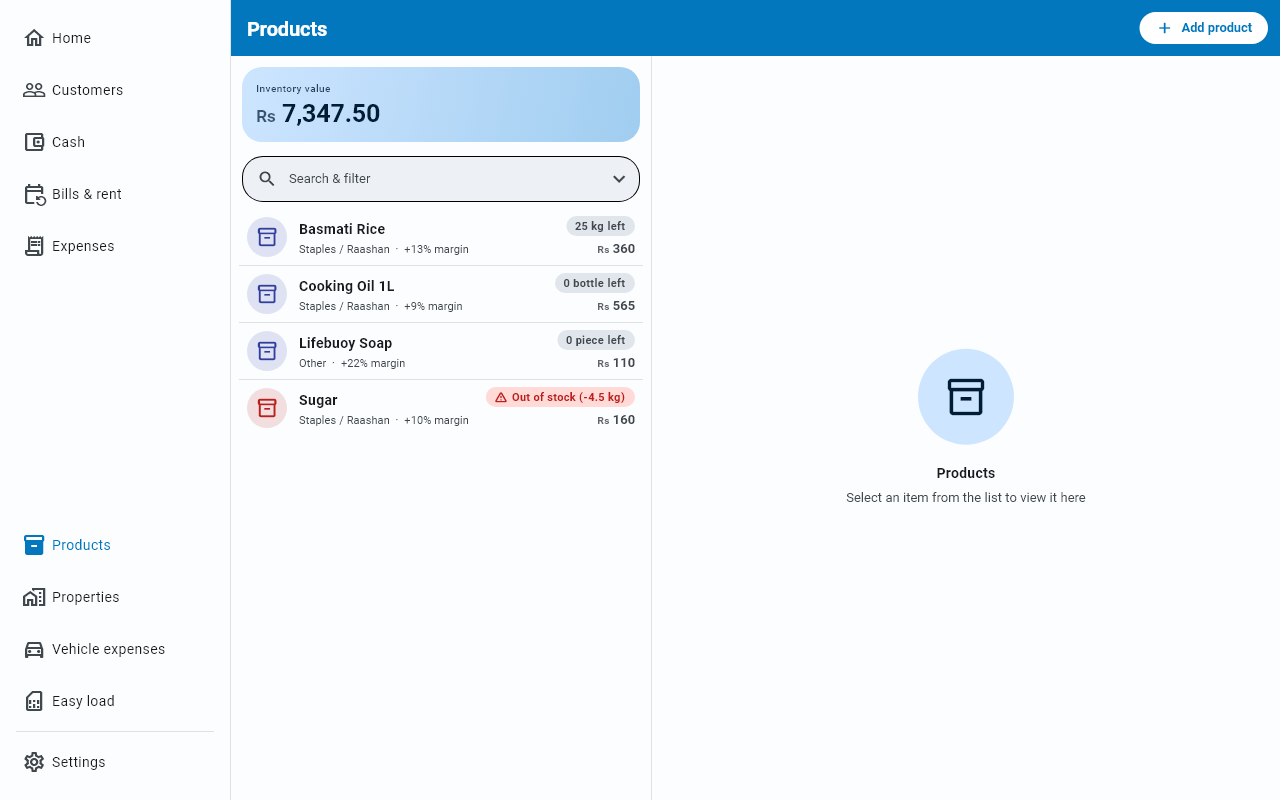
The Products screen shows your total Inventory value at the top, and flags anything at or below its low-stock level.
Reading a product row
Each row leads with how many are left, on the right, in a small coloured pill — with the sale price underneath it. The name and its category and margin sit on the left, and the name can take two lines, so a long name never hides the stock.
| Pill | What it means |
|---|---|
| Plain, like 12 kg left | Comfortably above your low-stock level |
| Amber, with a ⚠, like 3 kg left | At or below the number you set in Low-stock alert at |
| Red, with a ⚠: Out of stock | None left, on a product where you set a low-stock level |
| Red, with a ⚠: Out of stock (-3 kg) | You sold more than you had recorded — the pill keeps the shortfall so you can see how far off it is |
A product you never counted shows a plain 0 left, not a red warning: red is kept for items you asked to be warned about. Set Low-stock alert at on the things you cannot afford to run out of and they will turn amber, then red.
When the shelf does not match
Counted the shelf and it is not what Businessly says — something broke, went missing, or arrived without a purchase? Open the product and press Adjust next to its stock. You adjust by count, in three steps:
- Pick Add stock (+) or Remove stock (−).
- Type How many? as a plain positive number — 5, or 2.5 — never a minus sign. The direction is the choice above it; a 0 or a "−3" is turned down with a hint and Save stays off.
- Look at the box underneath: it shows the stock you will have afterwards, live — 12 → 17 kg for adding 5 to 12. Add a Reason (optional) if you like, then Save.
An adjustment only moves this item's stock count. It does not touch any customer's balance or your cash.
Finding things
A search box, and a category filter. On a long catalogue the filter is usually faster than typing.
Picking a product opens it in the right-hand pane, so the list stays put while you edit.
Do you need this?
Keep a catalogue if you want item names on sales, margins per product, or a warning before you run out of something. Skip it if you mostly record totals — the ledger works perfectly without a single product in it.