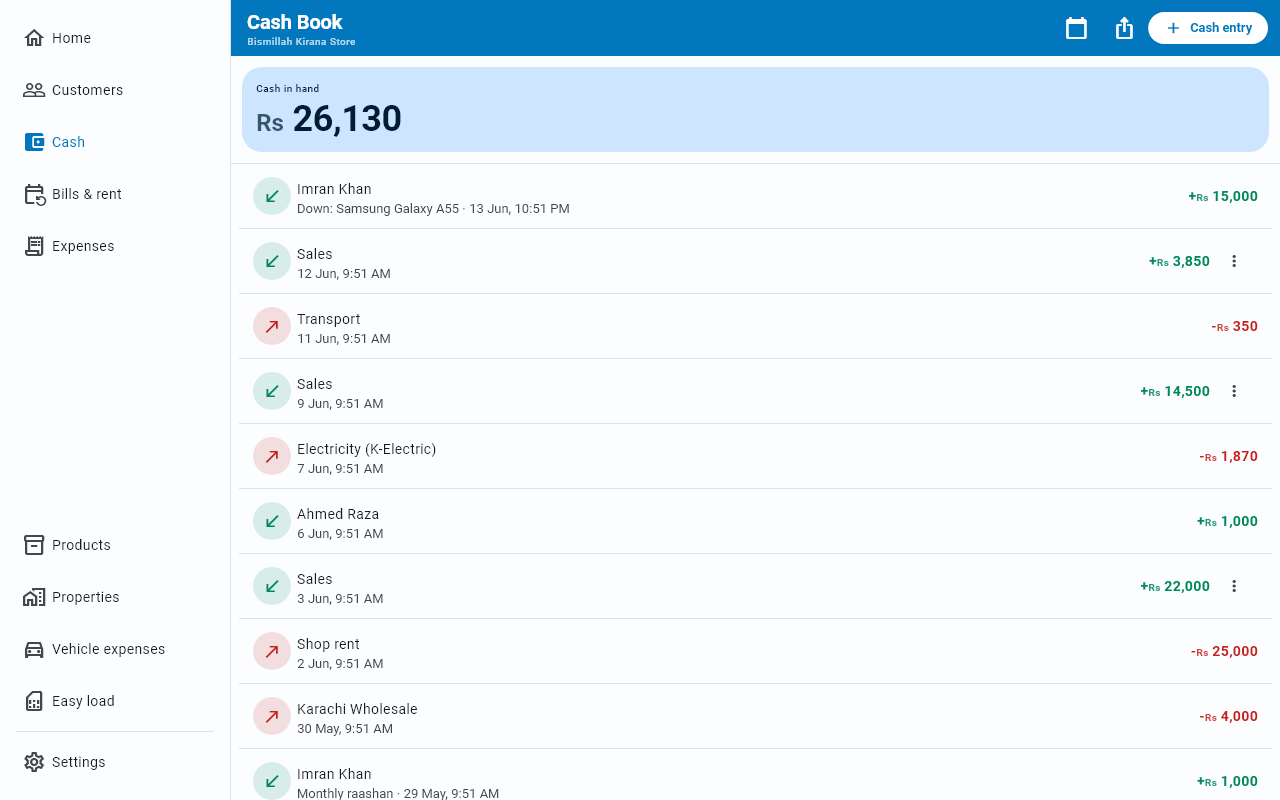
Cash book
Every rupee in and out of the till, in one list, with what should be in the drawer right now at the top.
The Cash tab is your till. Cash in hand sits at the top — what should physically be in the drawer right now — and below it every movement that got you there.
Money in is green, money out is red.
What lands here
More than you might record by hand, because the app connects things up for you:
- Cash in and Cash out you enter directly
- The cash part of any sale or purchase
- Every payment from a customer, or to a supplier
- Expenses marked Paid in cash now
- Bill and rent payments once you record them
- Installment payments and loan movements
Adding a cash entry
The Cash entry button offers three things, and each row says what it counts as:
| What it is | |
|---|---|
| Cash in | Money received into the shop |
| Add expense | Rent, bills, transport. Counts in Expenses. |
| Cash out | Owner drawing, bank deposit. Not an expense. |
Cash in and Cash out each take an Amount, a category, an optional Note (optional), and optionally a customer or supplier to link it to. Link it and the entry also appears on that person's statement. Editing an entry keeps its note.
Add expense opens the same form as the Expenses tab, with Paid in cash now already on. Save it and the cost lands in Expenses — its totals and its PDF — and shows here as a cash-out, so the till and your expenses agree.
The date filter
The calendar button at the top right narrows the list — All time, this week, this month, last month, last 30 days, or exact dates you choose. While a period is active, a chip under the Cash in hand card names it; tap its ✕ to go back to all time. Cash in hand always shows the true current figure regardless of the filter; the list and its totals follow it.
Checking your till
At the end of the day, count the drawer and compare it to Cash in hand. If they differ, the usual causes are:
- an expense recorded as paid in cash when it was not, or the reverse
- a sale entered as Cash when part of it was Credit (udhaar)
- something not recorded yet
Exporting
The share button at the top right exports whatever the filter is showing, as a PDF or an Excel file. See Reports & export.
Looking at one entry
Tap any row to see the whole entry: whether it was cash in or cash out, the full date and time, the category, the customer or supplier if it is linked to one, and the note in full. The row itself only has space for a line of that.
Correcting an entry
Edit and Cancel entry are buttons at the bottom of that view, and the ⋮ menu on the row still goes straight to either one — see Fixing a mistake. Entries that belong to a bill or an installment are managed from their own screens instead.