Collect udhaar
Everyone who owes you, biggest first, with a one-tap reminder beside each name. The screen for your daily follow-ups.
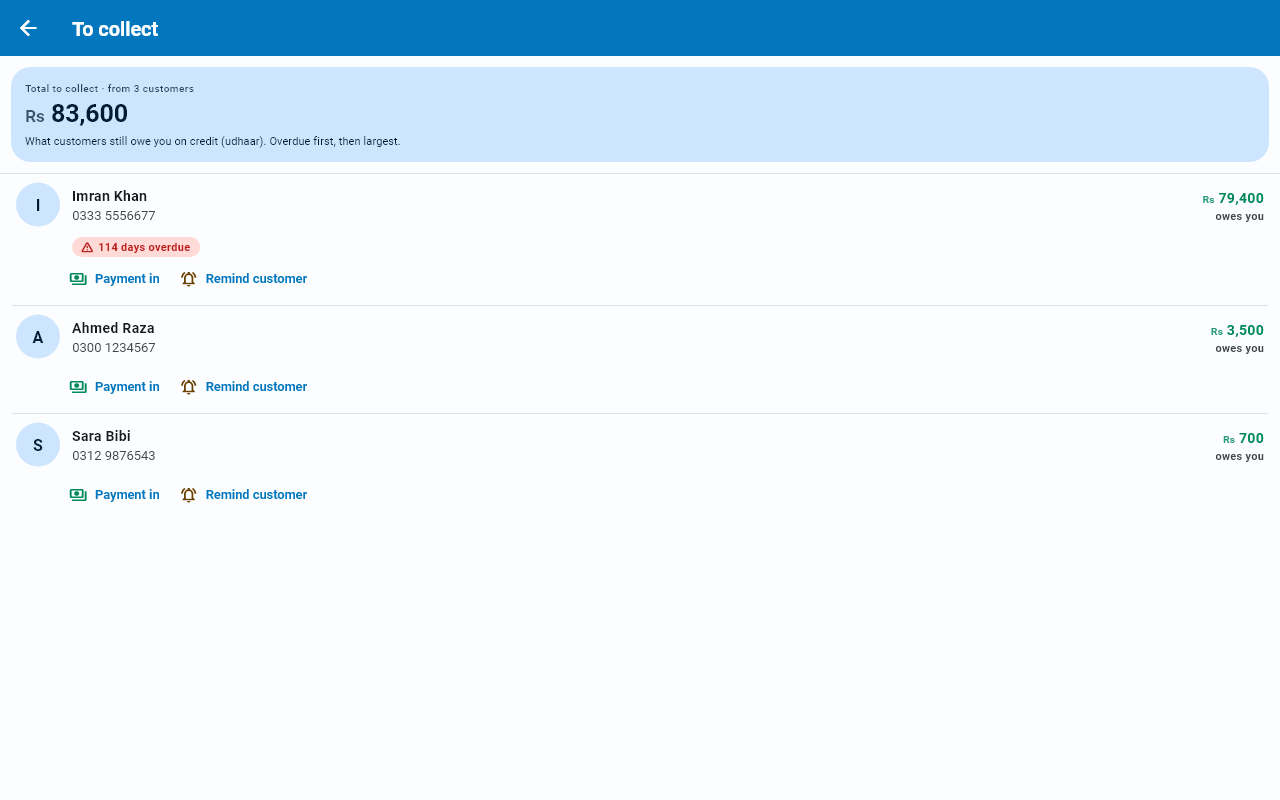
To collect gathers every customer with an outstanding balance into one list, so you are not hunting through your customers tab trying to remember who owes what.
Reach it by tapping the wide You'll receive (lena) tile on Home (or its customers owe › line).
What you see
Total to collect at the top, followed by how many customers it is made of (from 3 customers), and one line underneath saying what the figure means: what customers still owe you on credit (udhaar), overdue first, then the largest. Then each customer with their balance. The largest balances come early, because that is usually where the effort is best spent.
Anyone past their due date is flagged and listed first, so overdue accounts stand out from ones that are simply outstanding.
Each row
Every customer row carries two labelled buttons under the name — no more guessing what a bare icon does:
- Payment in opens the payment form for that customer, so you can record what they just handed you without leaving this list.
- Remind customer opens the WhatsApp reminder.
If you have set a collection date for the customer (on their statement), a pill shows how late they are: red 12 days overdue once the date has passed, otherwise Due 5 Oct — amber within a week, plain beyond. A customer with no date set shows no pill.
When the list is empty
An empty list now tells you what to do next, with one coloured button that opens the right form:
- No customers yet — No customers yet, with Add your first customer. It opens the New customer form.
- Customers, but nobody owes you — All settled up, with Record a sale. It opens the same customer picker as the Sale tile on the New entry sheet; a sale on credit (udhaar) will show up here.
Sending a reminder
Tap Remind customer under a name (the button is greyed when that customer has no phone number saved). A WhatsApp message opens with their name and the amount already filled in, and a polite wording you can change before sending.
WhatsApp opens straight away with the message ready. You just press send.
Your browser opens WhatsApp Web instead. You will need to have signed in there once on that PC.
A monthly nudge for you
Businessly can also remind you to do this round, once a month, on a day you pick. Turn it on under Reminders.
That monthly nudge is a phone notification, so it never arrives on a PC. The To collect screen itself works perfectly well on Windows — only the reminder does not.
Recording what comes in
When someone pays, record it as a payment. Their balance drops, and once it reaches zero they leave this list on their own.